# Visual Studio Code
Halon has a fully-featured integration with [Visual Studio Code](https://code.visualstudio.com) that leverages [Visual Studio Code Remote Development](https://code.visualstudio.com/docs/remote/remote-overview)
which allows you to connect to a container or remote machine (where Halon is installed) to work with it’s [configuration](config.html.md),
including [linting](#vscode-linter) and [debugging](#vscode-debug) it’s Halon [script](https://docs.halon.io/hsl/archive/6.12-stable/) (HSL) source files.
## Extensions
Below is a list of the extensions we provide and whether they should be installed [locally or remotely](https://code.visualstudio.com/api/advanced-topics/remote-extensions#architecture-and-extension-kinds).
If both options are marked it can be installed either [locally or remotely](https://code.visualstudio.com/api/advanced-topics/remote-extensions#architecture-and-extension-kinds) depending on the use case.
| Extension | Local | Remote | Marketplace |
|----------------------------------------------------------------------------------|---------|----------|--------------------------------------------------------------------------------------------|
| [Halon Configuration Packer](#vscode-conf) | ✓ | ✓ | [Install](https://marketplace.visualstudio.com/items?itemName=Halon.vscode-halon) |
| [Halon Scripting Language Syntax](#vscode-syntax) | ✓ | | [Install](https://marketplace.visualstudio.com/items?itemName=Halon.hsl-syntax) |
| [Halon Scripting Language Linter](#vscode-linter) | | ✓ | [Install](https://marketplace.visualstudio.com/items?itemName=Halon.hsl-linter) |
| [Halon Scripting Language Debugger](#vscode-debug) | | ✓ | [Install](https://marketplace.visualstudio.com/items?itemName=Halon.hsl-debug) |
| [Halon Code Companion](#vscode-code-companion) | ✓ | ✓ | [Install](https://marketplace.visualstudio.com/items?itemName=Halon.vscode-code-companion) |
### Configuration Packer
Provides a [configuration packer](config_smtpd.html.md#config-script) for Halon.
It also provides a linter for the [configuration](config.html.md) files.
> **Note**
>
> This extension can be installed either locally or remotely depending on the use case.
> When installed locally it can also be used to quickly [setup a development environment](#vscode-dev).
Run the `Halon: Build` command to package the configuration files.
If you don’t have an existing configuration you can run the `Halon: Init` command and select a configuration template.
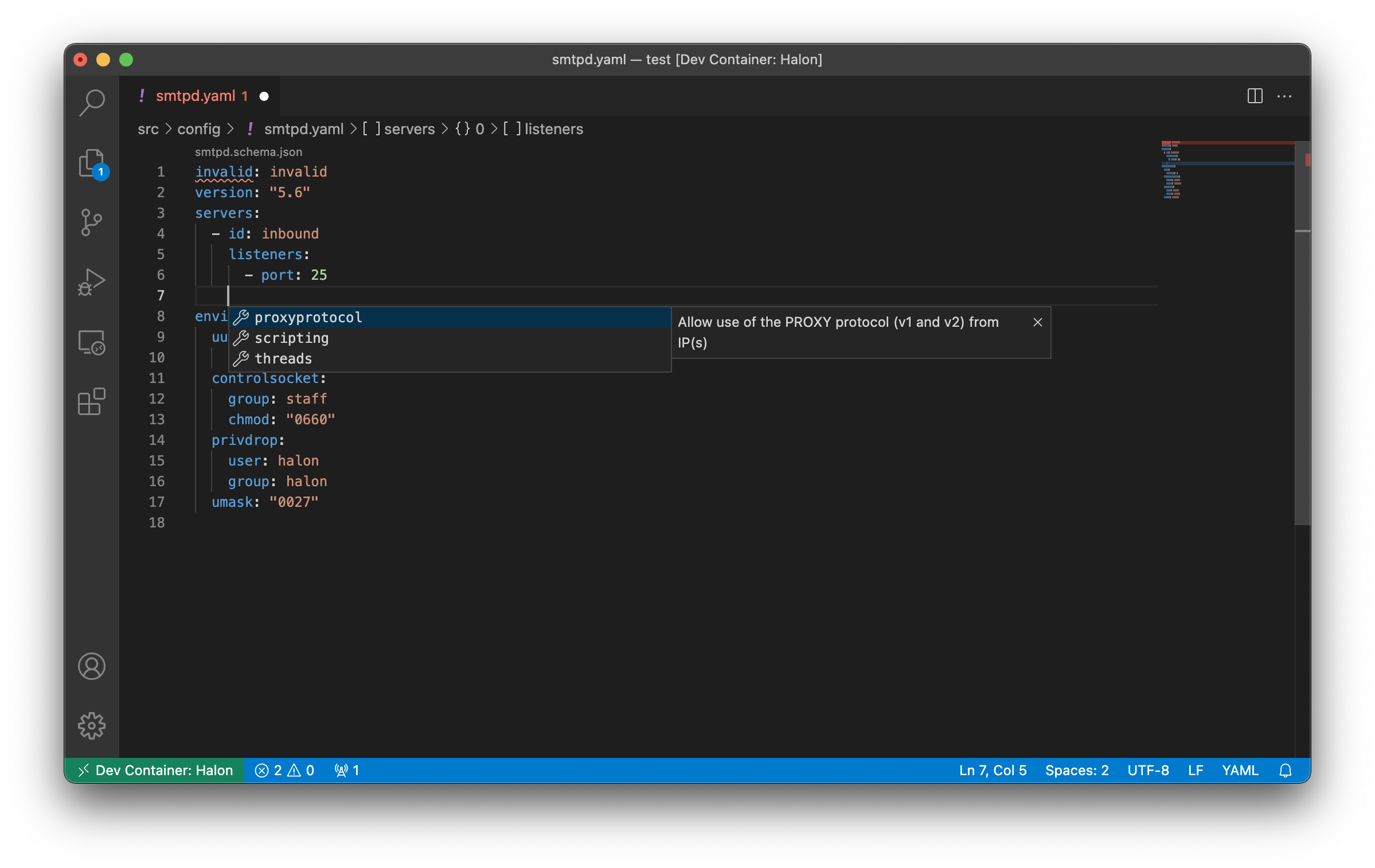
*The autocomplete and linter for the YAML [configuration](config.html.md) files in action*
### HSL Syntax
Provides syntax highlighting for Halon [script](https://docs.halon.io/hsl/archive/6.12-stable/) (HSL) source files.
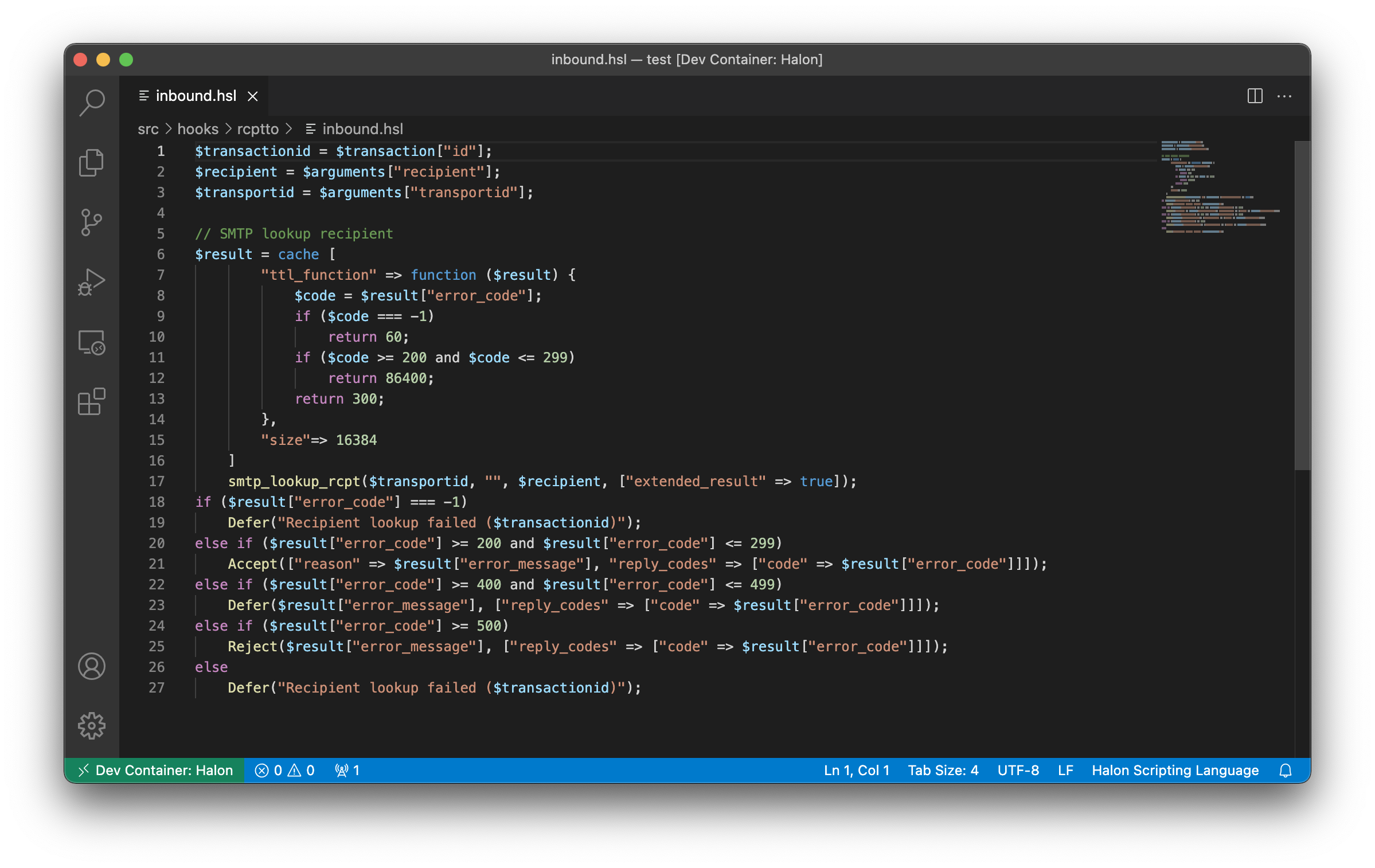
*The Halon [script](https://docs.halon.io/hsl/archive/6.12-stable/) (HSL) syntax highlighting in action*
### HSL Linter
Provides a linter for Halon [script](https://docs.halon.io/hsl/archive/6.12-stable/) (HSL) source files.
> **Note**
>
> This extension should only be installed remotely.
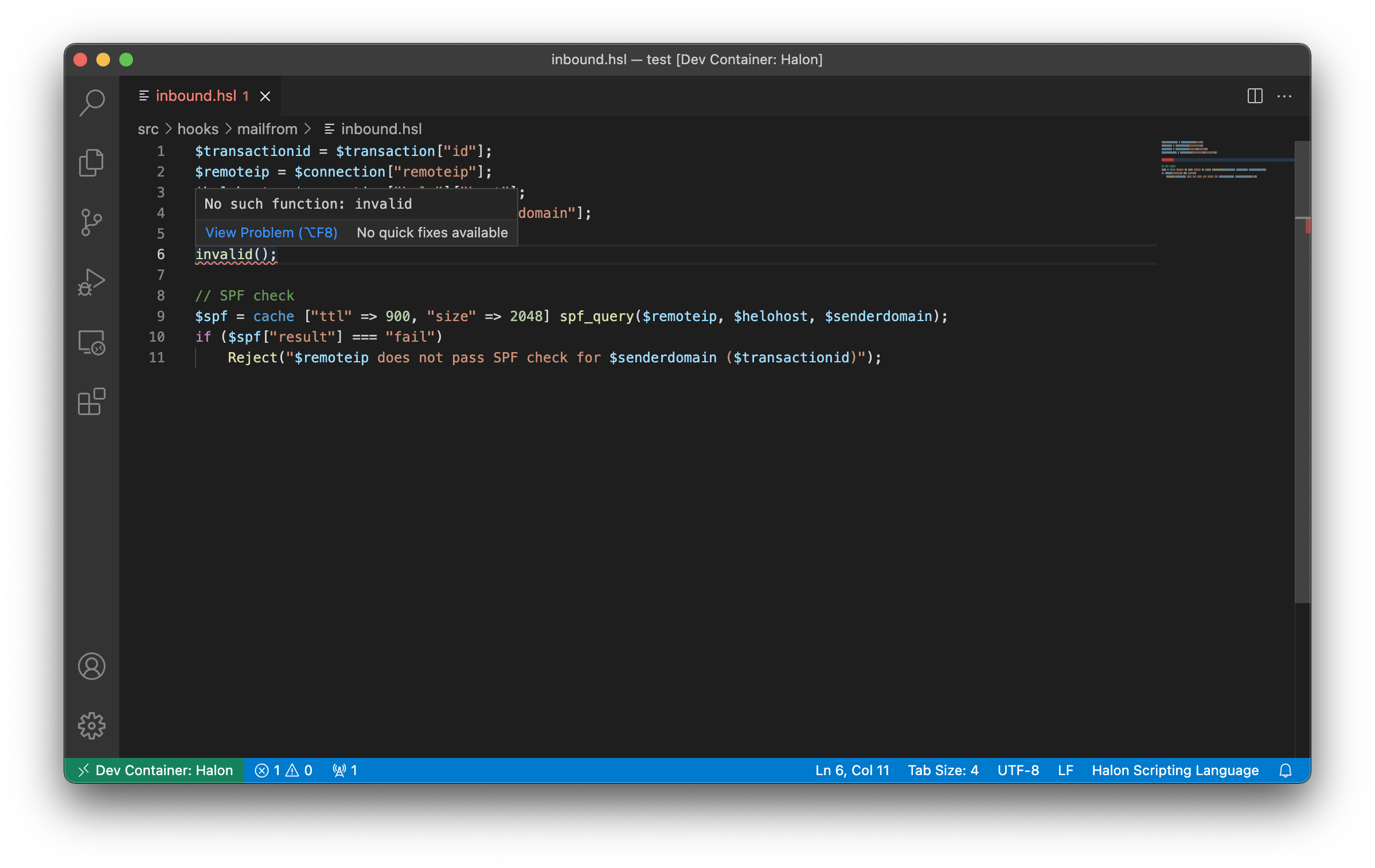
*The Halon [script](https://docs.halon.io/hsl/archive/6.12-stable/) (HSL) linter in action*
### HSL Debugger
Provides a [debugger](https://code.visualstudio.com/docs/editor/debugging) for Halon [script](https://docs.halon.io/hsl/archive/6.12-stable/) (HSL) source files.
> **Note**
>
> This extension should only be installed remotely.
[Launch configuration](https://code.visualstudio.com/docs/editor/debugging#_launch-configurations) snippets are available under the *Halon Scripting Language* namespace when the extension has been installed.
Use the *Debug File* snippet if you want to debug a HSL module inside the `src/files` folder using our [script interpreter](cli_hsh.html.md#hsh) or the *Debug Live Stage* snippet if you want to debug the [smtpd](install.html.md#comp-programs) process when using [blue-green testing](cli_config.html.md#cli-bluegreen).
If you open the `.vscode/launch.json` file that gets created you can add `conditions` to the *Debug Live Stage* snippet to limit which incoming connections the test configuration gets applied for, such as `probability` or `remoteips`:
```json
{
"name": "Debug Live Stage",
"type": "halon",
"request": "launch",
"conditions": {
"probability": 0.01,
"remoteips": [
"10.2.55.20"
]
}
}
```
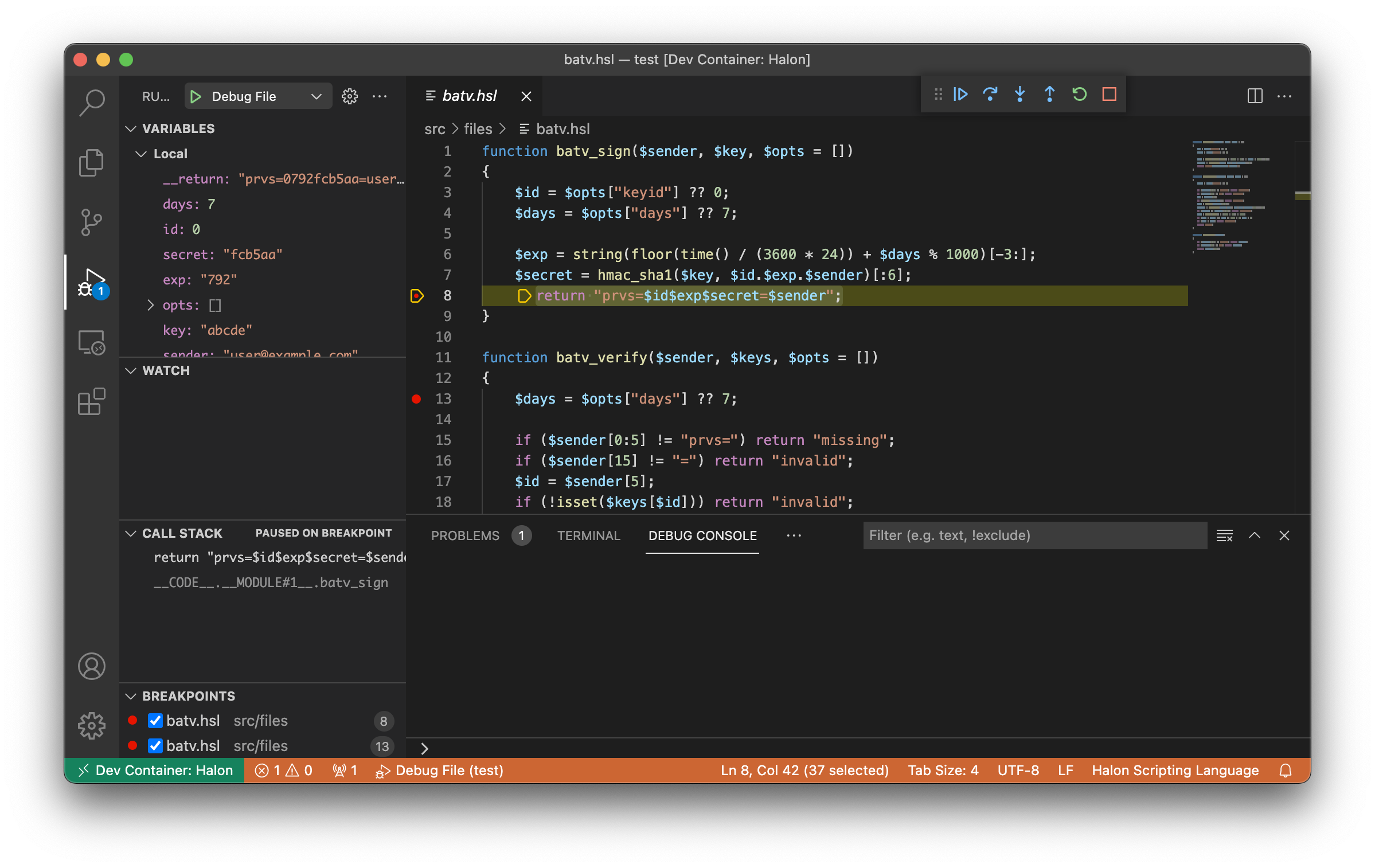
*The Halon [script](https://docs.halon.io/hsl/archive/6.12-stable/) (HSL) debugger in action*
### Code Companion
Code Companion provides powerful machine-learning driven code generation and analysis for Halon Scripting Language (HSL) [script](https://docs.halon.io/hsl/archive/6.12-stable/) source files.
It extends the capabilities of [GitHub Copilot](https://github.com/features/copilot/) and provides a chat interface to ask for code suggestions, explanations, and reviews.
Before starting, ensure you have [GitHub Copilot](https://github.com/features/copilot/) installed in your Visual Studio Code. The free version is available for all users.
Open Copilot chat using the  icon in the top line of the editor window.
Alternatively, you can use the [Command Palette](https://code.visualstudio.com/docs/getstarted/userinterface#_command-palette) and search for *Copilot: Open Chat*.
Open an HSL file in the main code window and start typing your prompt in the Copilot chat.
You should see the file appears in a box, known as *context*.
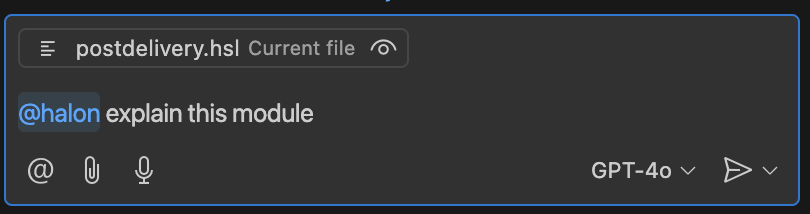
*Copilot chat with the Halon extension active*
Prefix your question to Copilot with `@halon`, this is known as *mentioning* or *tagging*. If the extension is active, the text will be shown in blue.
You can drag more files into the chat window to give more context. This can include HSL and YAML files.
The response from Copilot should start with the “Halon Code Companion” logo and title:
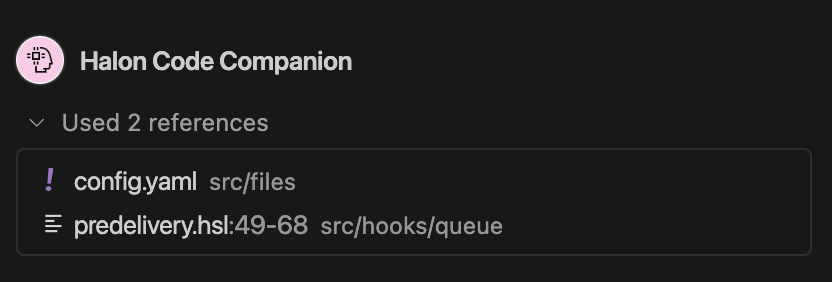
*Copilot response with the Halon extension active*
If you don’t see this icon, you are getting responses **without the Halon extension**, which may give misleading results based on other programming languages.
Example queries you can ask:
Adding code to a module
: `@halon add DKIM signing to this module`
Explain the purpose of code
: `@halon explain this code`
Look for improvements to code
: `@halon review this code`
Responses can take a few seconds to appear. For responses to add or modify code, the chat window will contain suggested code in a panel.
You can then copy and paste this manually, but it is easier to use the “Apply in Editor”  button. which appears when you hover over the example code panel.

*Buttons to apply code suggestions into editor file*
This prompts you to accept changes into your current file.
Changes are shown with red/green color highlighting, and you can accept or reject each change individually.

*Accept/reject/view diffs in editor file*
For more information, see [VSCode Copilot documentation](https://code.visualstudio.com/docs/copilot/copilot-chat).
#### Providing feedback
There is an easy way to provide feedback on Code Companion suggestions using the thumbs-up or thumbs-down icons.
For thumbs-down, you can provide a reason why it was unhelpful.
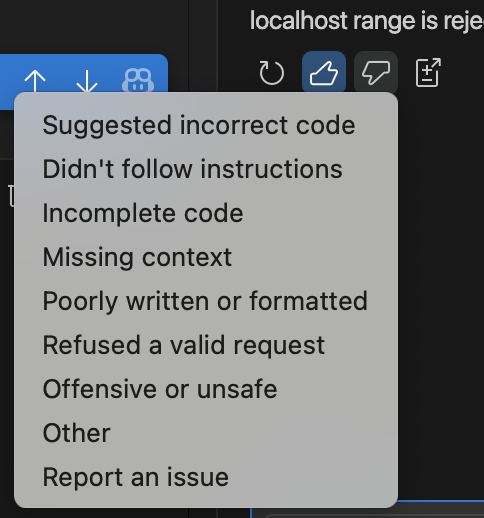
*Feedback*
As this feedback mechanism does not include specifics of your code or problem, please open a [support](https://halon.io/support) ticket directly to Halon.
#### Working with Dev Containers and Remote SSH
When working in a Dev Container, or using [Remote SSH](https://marketplace.visualstudio.com/items?itemName=ms-vscode-remote.remote-ssh), ensure that the Code Companion extension is installed remotely as well as locally.
This can be done via the left panel Extensions menu. If this is not done, you are querying “raw” Copilot *not the Halon extension*.
#### Limitations
* If you see example “autocomplete” code suggestions appearing as gray text while you type in your main code window, these come from “raw” Copilot *not via the Halon extension*, so may not be correct HSL.
* The Copilot “Editor inline chat” feature accessible via right-click in an editor window does not use the Halon extension, so is not recommended for HSL work.
#### Copilot error messages
If the files providing context are too long, you may see an error message such as `Token budget of 63802 exceeded by 1743`. You can try to reduce the number of files or the size of the files.
## Setting up a development environment
To quickly setup a development environment using a container and [Docker Desktop](https://www.docker.com/products/docker-desktop), simply install the [Halon Configuration Packer](#vscode-conf) extension locally,
open a new empty folder, run the `Halon: Init` command and when the selection for *Remote development* comes up, pick the *container* option.
After this, follow the instructions in the `README.md` file that opens up to get started.
See [Developing inside a Container](https://code.visualstudio.com/docs/remote/containers) for more information about how this works.
## Editing YAML with custom tags
Halon configuration can make use of custom tags that correspond to data types, such as `!Map` and `!Set`.
Note that HSL can also apply specific data types in the [import .. with](https://docs.halon.io/hsl/archive/6.12-stable/structures.html#import) statement.
Custom tags will trigger syntax warnings in your editor, but this can be solved by configuring `customTags` for the [Red Hat YAML plugin](https://marketplace.visualstudio.com/items?itemName=redhat.vscode-yaml) in `.vscode/settings.json`.
Here is a typical setup for working with Halon YAML:
*.vscode/settings.json*
```json
{
"yaml.customTags": [
"!Map mapping",
"!Set sequence",
"!Regex scalar",
"!PrivateKey scalar",
"!X509 scalar",
"!MailMessage scalar",
"!Env scalar"
]
}
```